Showing posts with label JMETER. Show all posts

Thursday, November 10, 2016

JMeter connect with Database -- JDBC Connection

  • if you met this issue like this:
jmeter.protocol.jdbc.config.DataSourceElement: Could not load driver: oracle.jdbc.OracleDriver java.lang.ClassNotFoundException: oracle.jdbc.OracleDriver
at java.net.URLClassLoader$1.run(URLClassLoader.java:202)
at java.security.AccessController.doPrivileged(Native Method)
at java.net.URLClassLoader.findClass(URLClassLoader.java:190)
at java.lang.ClassLoader.loadClass(ClassLoader.java:306)
at java.lang.ClassLoader.loadClass(ClassLoader.java:247)
at java.lang.Class.forName0(Native Method)
at java.lang.Class.forName(Class.java:247)

That means you miss the jdbc jar file.  you need to download teh Oracle JDBC driver file and put it into the Jmeter lib\ext dir.
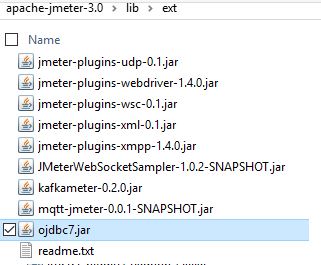

 
  •  If you meet this issue:
java.sql.SQLException: Cannot create PoolableConnectionFactory (ORA-00923: FROM keyword not found where expected 

 That means there is something wrong with the  JDBC Connection Configuration setting:

Validation Query :: A simple query used to determine if the database is still responding. This defaults to 'SELECT 1' which is suitable for many databases. However some may require a different query; for example Oracle requires something like 'SELECT 1 FROM DUAL'. Note this validation query is used on pool creation to validate it even if "Test While Idle" suggests query would only be used on idle connections. This is DBCP behaviour. 


Tuesday, October 13, 2015

What kind of information can be saved into .jtl file when running JMeter with NON-GUI?


There are two ways we can use:

  •  modified the properties default values.  There are tons of  properties you can use to decide what you want to save into the result .jtl file. And you can find all of them from jmeter.properties file under /bin folder of your JMeter installation and they are starting with jmeter.save.saveservice.The following are default values.
#jmeter.save.saveservice.output_format=csv
#jmeter.save.saveservice.assertion_results_failure_message=false
#jmeter.save.saveservice.assertion_results=none
#jmeter.save.saveservice.data_type=true
#jmeter.save.saveservice.label=true
#jmeter.save.saveservice.response_code=true
#jmeter.save.saveservice.response_data=false
#jmeter.save.saveservice.response_data.on_error=false
#jmeter.save.saveservice.response_message=true
#jmeter.save.saveservice.successful=true
#jmeter.save.saveservice.thread_name=true
#jmeter.save.saveservice.time=true
#jmeter.save.saveservice.subresults=true
#jmeter.save.saveservice.assertions=true
#jmeter.save.saveservice.latency=true
#jmeter.save.saveservice.samplerData=false
#jmeter.save.saveservice.responseHeaders=false
#jmeter.save.saveservice.requestHeaders=false
#jmeter.save.saveservice.encoding=false
#jmeter.save.saveservice.bytes=true
#jmeter.save.saveservice.url=false
#jmeter.save.saveservice.filename=false
#jmeter.save.saveservice.hostname=false
#jmeter.save.saveservice.thread_counts=false
#jmeter.save.saveservice.sample_count=false
#jmeter.save.saveservice.idle_time=false
#jmeter.save.saveservice.timestamp_format=ms
#jmeter.save.saveservice.timestamp_format=yyyy/MM/dd HH:mm:ss.SSS
#jmeter.save.saveservice.default_delimiter=,
#jmeter.save.saveservice.default_delimiter=\t
#jmeter.save.saveservice.print_field_names=false
#jmeter.save.saveservice.xml_pi=<?xml-stylesheet type="text/xsl" href="../extras/jmeter-results-detail-report_21.xsl"?>
#jmeter.save.saveservice.base_prefix=~/
#jmeter.save.saveservice.autoflush=false

  •  We can use command-line option -D to change the jmeter.properties settings temporarily to make the test result save what we want to save into .jtl file.  for example, if we want to save the url into the .jtl, we can write the command line like this:

>>jmeter -n -t /my_jmeter_tests/testPath.jmx -l /my_jmeter_tests/test-output/test_result.jtl -D jmeter.save.saveservice.output_format=xml -D jmeter.save.saveservice.url=true

if we use -J, rather than -D, it will modify the proprieties's value permanently.

See Apache JMeter Properties Customization Guide for more details on what can be done using JMeter Properties.


Thursday, October 1, 2015

How to handle pipe line "|" in Jmeter HTTP Request parameter


In Jmeter HttpRequest parameter, can’t use pipe line ( | ) directly, it need to use %7C.
If  using pipe ( | ) directly in the parameter, like this STLNAME1|CARDMSG1|STFNAME1,


This request will fail and the response will complain, like “java.net.URISyntaxException: Illegal character in query….”
 
So, if you have only one parameter need to us pipe line ( | ), you can directly replace the pipe line ( | ) with %7C, that will help you solve the problem. Like “STLNAME1%7CCARDMSG1%7CSTFNAME1”


But, if you use a lot of pipe line ( | ) in your parameter, replacing them manually will be painful, so there is another way to automatically convert pipe line into %7C.
Check “encode?” box in “Send Parameters with the Request” like this. 


 Nice, ready to go!!!!!!!!!!!!!!! :)

Friday, September 18, 2015

COMPLAINS FOR MISSING STEP THREAD GROUP OR ULTIMATE THREAD GROUP In JMeter Remote Testing


If the JMeter test is using Stepping Thread Group or Ultimate Thread Group, So we need to make sure the slave machines are installed Jmeterplugin ,  without this plugin the Stepping Thread Group and Ultimate Thread Group won’t be support and Slave machine can’t run the Jmeter test.  If you don’t install the Plugin , from the menu, you can’t see the choices:

·         jp@gc – Stepping Thread Group
·         jp@gc – Ultimate Thread Group
And when you try to run remote Start… there will be an error message pops up for complaining can’t find the Stepping Thread Group…..